Gaming Technology / UPDATED 2026-10-23
PC Game Performance and Recording: FPS, Stutter and Capture Checklist
A game can report a high average FPS and still feel choppy if frame times are uneven, the system is overheating, or recording software competes for the same resources. This guide focuses on simple, reversible tests for PC game performance and capture problems rather than recommending random system tweaks that can make troubleshooting harder.
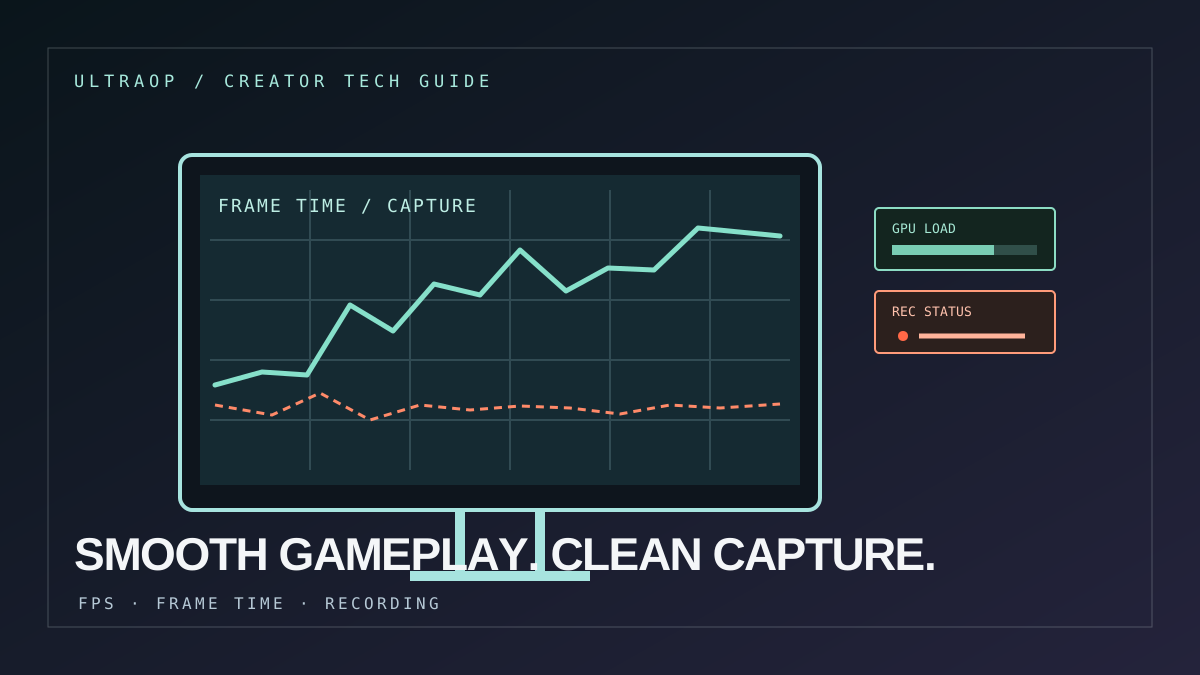
Original editorial illustration for this article; not an official in-game screenshot.
7 minute read · Last reviewed 2026-10-23
Key takeaways
- Record a baseline FPS and frame-time observation before changing settings.
- Separate game-rendering problems from recording, storage, network and server-lag problems.
- Change one setting at a time and repeat the same test scenario.
- Monitor temperatures, clock behaviour, system memory, VRAM and storage activity while reproducing the issue.
- Back up configurations and avoid unofficial driver packs or unknown optimisation tools.
Step 1: Identify what is actually lagging
Low FPS, frame-time stutter, delayed input, network latency and dropped recording frames feel similar to a viewer but have different causes. If the image visibly pauses while the FPS counter remains high, look at frame-time consistency. If players teleport but local movement remains smooth, check network/server latency. If gameplay is smooth but the captured file stutters, inspect recording settings and capture performance.
Write down the game and exact version, display resolution, graphics preset, capture resolution/frame rate, GPU driver version and whether the issue occurs with recording turned off. A repeatable baseline is more useful than changing several settings at once.
Step 2: Check thermals and resource pressure
During a controlled reproduction, monitor CPU/GPU temperature, clock speeds, system memory, VRAM use and storage activity. High utilisation is not automatically a fault, and temperature limits depend on the specific hardware model. Compare the behaviour against the manufacturer’s normal operating guidance instead of using one universal temperature number for every device.
If the machine gets progressively slower after ten to fifteen minutes, check whether temperatures, clocks or memory pressure change at the same time. Keep the case vents clear, confirm fans are working and remove dust safely according to the hardware maker’s instructions. Avoid opening a power supply or making risky electrical repairs.
Step 3: Tune the game and capture workload
Exact encoder settings vary by recording application, codec, GPU and target platform. Use the application’s official guide and test the file’s playback, not just the recording preview.
- Start with the game at a known resolution and a stable, supported graphics preset.
- Use a reasonable FPS cap if uncapped rendering keeps the GPU saturated and leaves no headroom for capture.
- Match recording resolution and frame rate to the actual output goal rather than recording at an unnecessarily high setting.
- Check whether hardware encoding is available and supported by the GPU/driver.
- Record to a drive with sufficient free space and healthy write performance.
- Test a short local recording before a live broadcast or a long session.
Step 4: Update software carefully
Use the official GPU vendor or computer manufacturer source for graphics drivers and release notes. Before a driver change, note the current version and create a recovery point or backup where supported. If an update introduces instability, follow the vendor’s documented rollback path instead of downloading an unofficial package from an unknown site.
Game engines and capture apps can change their GPU scheduling, encoding and compatibility requirements between releases. Update one component at a time when possible, and retest the same scene so that the result can be compared.
Step 5: Write down the successful configuration
Once a stable setting is found, save a short profile with the game version, resolution, graphics preset, FPS cap, capture encoder, output resolution and driver version. Keep the settings together with a sample clip. This makes it easier to restore the workflow after a future update or hardware change.
For version-specific Minecraft behaviour, start with the Minecraft version library. If a multiplayer server is involved, also separate client performance from server tick rate and ping; one can be healthy while the other is not.
Sources and further reading
Game-specific details should be checked against the publisher or tournament organiser’s original notes. This article is an editorial summary.
Related guides
- Minecraft Java Edition Version Guide: 26.3, 26.2, 26.1 and 1.21
Find Minecraft Java Edition release guides, major changes, update notes and version-selection advice, from the 26.3 Wilderness Bound drop to 1.21 and older server versions.
- How to Choose a Minecraft Server Version for Plugins and Mods
A practical Minecraft server version guide for Paper, Fabric, plugins, mods and client compatibility. Learn how to check support, back up worlds and avoid unsafe upgrades.
- How to Start in Esports: Practice, Teams, Tournaments and Player Safety
A practical beginner guide to competitive gaming: choose a title, build a practice routine, find legitimate tournaments, review matches and protect your account.
- Gaming Genres Explained: Sandbox, Survival, Battle Royale and Tactical FPS
Understand the main game genres—sandbox, survival, battle royale, tactical FPS and multiplayer competition—with examples and tips for choosing what to play.
Official website of UltraOP / Sk Ahsan Ahmad · Home · Guides · Games · Esports